Docs · ← → to move · P to print · Esc for first slide

School briefing

Your school, one portal.

A concise walkthrough of the Tailored School portal for staff, students, and parents — how daily work happens, and what each person needs to do this week.

Purpose

What this briefing covers

Keep one source of truth for learners, attendance, results, fees, and notices. Staff work in the school portal. Families use the student portal and email.

Staff

Register learners, mark attendance, publish results, collect fees, and send notices from one signed-in workspace.

Students

Sign in with a registration number to see subjects, homework, reports, attendance, and fee statements.

Parents / guardians

Apply online, track admissions, receive notices and invoices by email, and use the learner’s portal for reports and fees.

Access

Three ways to work

1. School portal (web)

The full system for administration, teaching, accounts, and the student portal. This is the main tool for staff.

2. Tailored School mobile

Teachers mark class attendance on a phone, even without internet. Students can open homework, reports, and fees on the same app.

3. School office computer

Where included, the desktop app keeps cash desk and selected school work available if the internet drops, then syncs when it returns.

Your school’s own name, logo, and colours appear on the portal. Screenshots here are from a live school, so the labels will differ.

Sign in

One login page, two doors
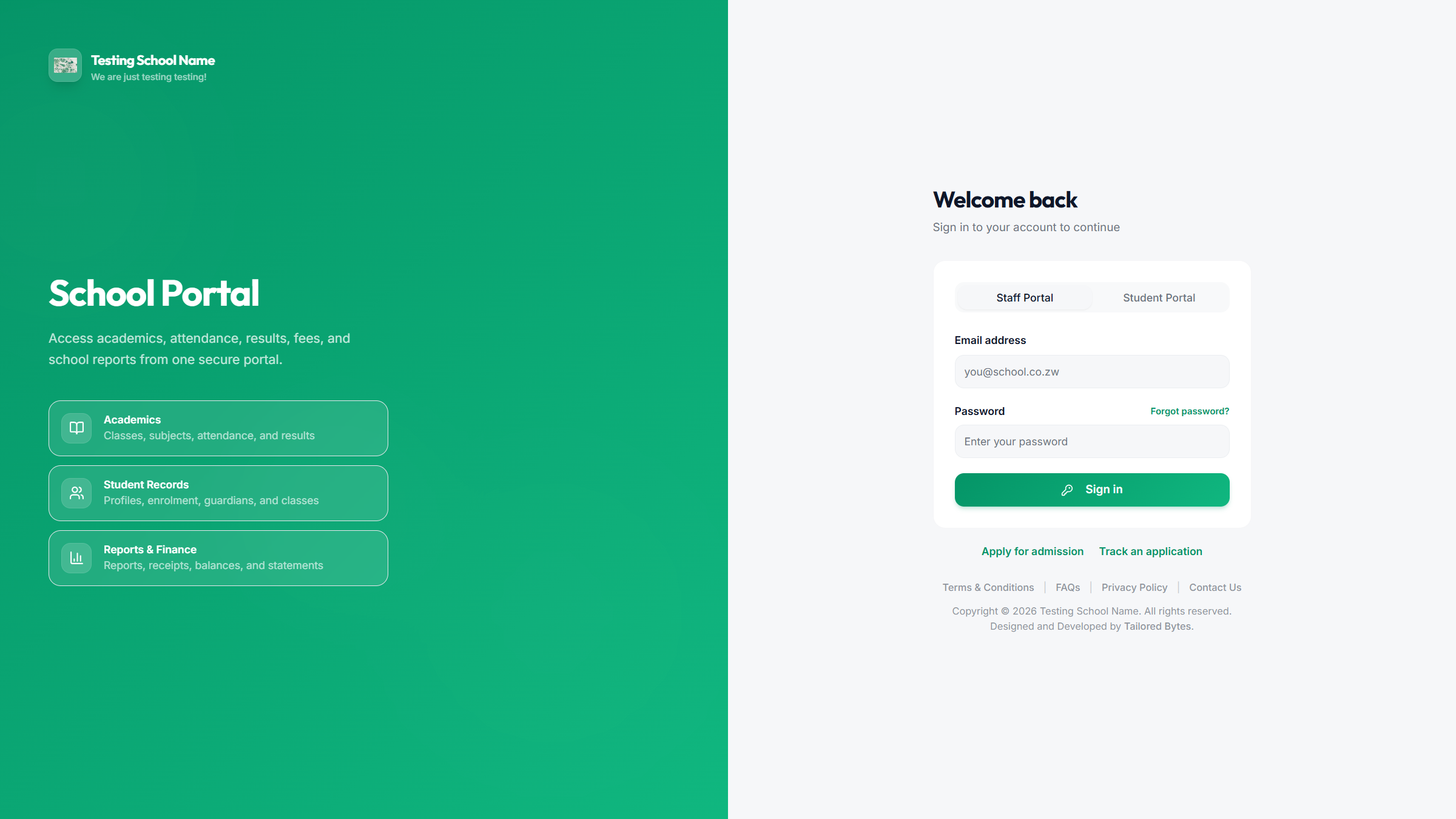
School portal login with Staff Portal and Student Portal tabs

Open your school portal URL. Choose Staff Portal or Student Portal before you type.

Remember this

  • Staff sign in with school email and password.
  • Students sign in with registration number and password.
  • First login asks you to change the temporary password.
  • Use Forgot password? if the school has your email on file.
  • Parents apply or track an application from the same page — no staff account needed.

Staff home

The dashboard is the starting point
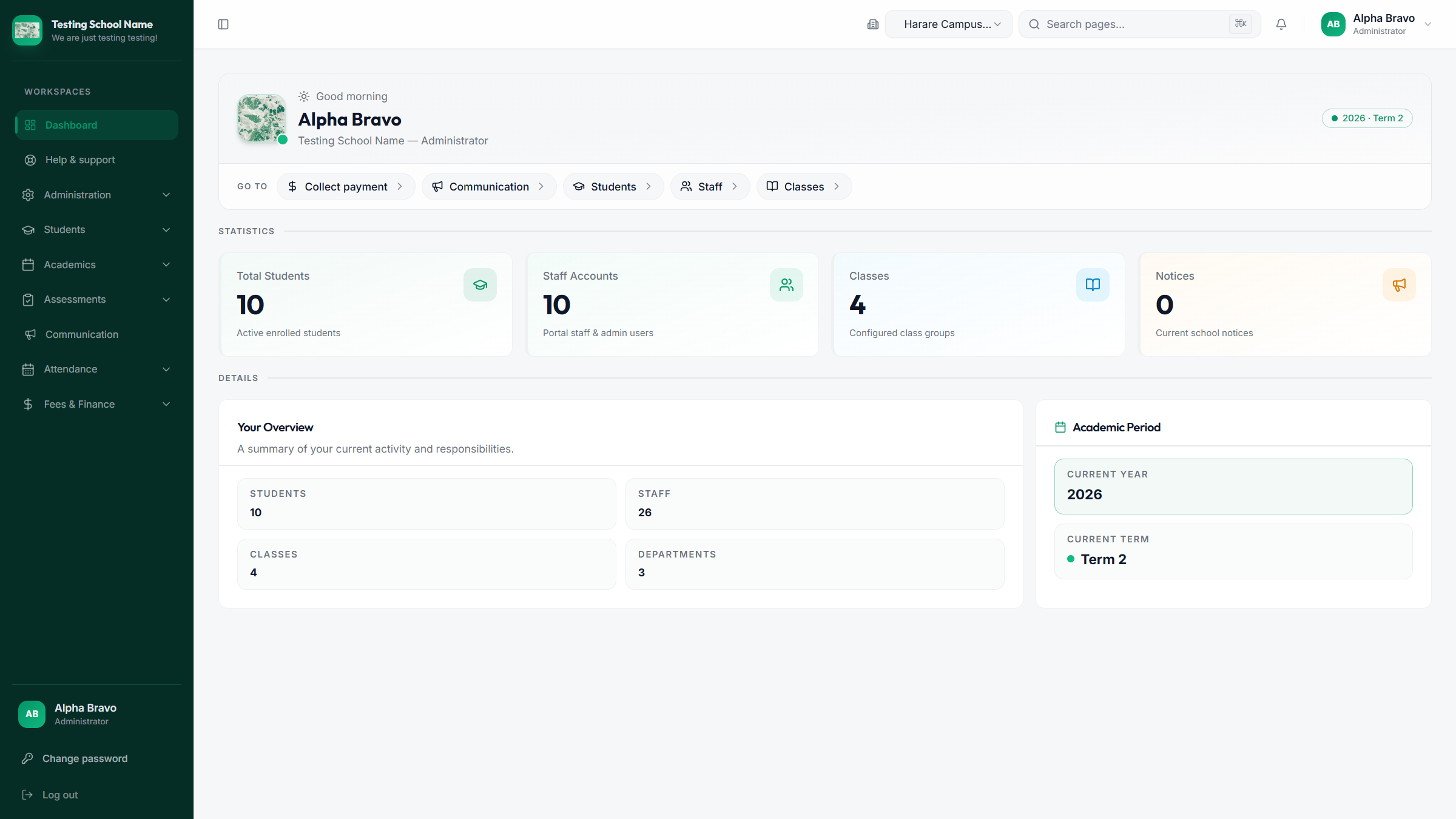
Administrator dashboard with counts and shortcuts

After sign-in you land on a workspace that matches your role. Administrators see school-wide counts. Accounts staff can go straight to cash desk.

Use it for

  • Checking year and term (example: 2026 · Term 2).
  • Jumping to Collect payment, Students, Staff, or Classes.
  • Switching campus from the top bar if the school has more than one site.
  • Opening Help & support without leaving the portal.

Learners

Student records stay in one file
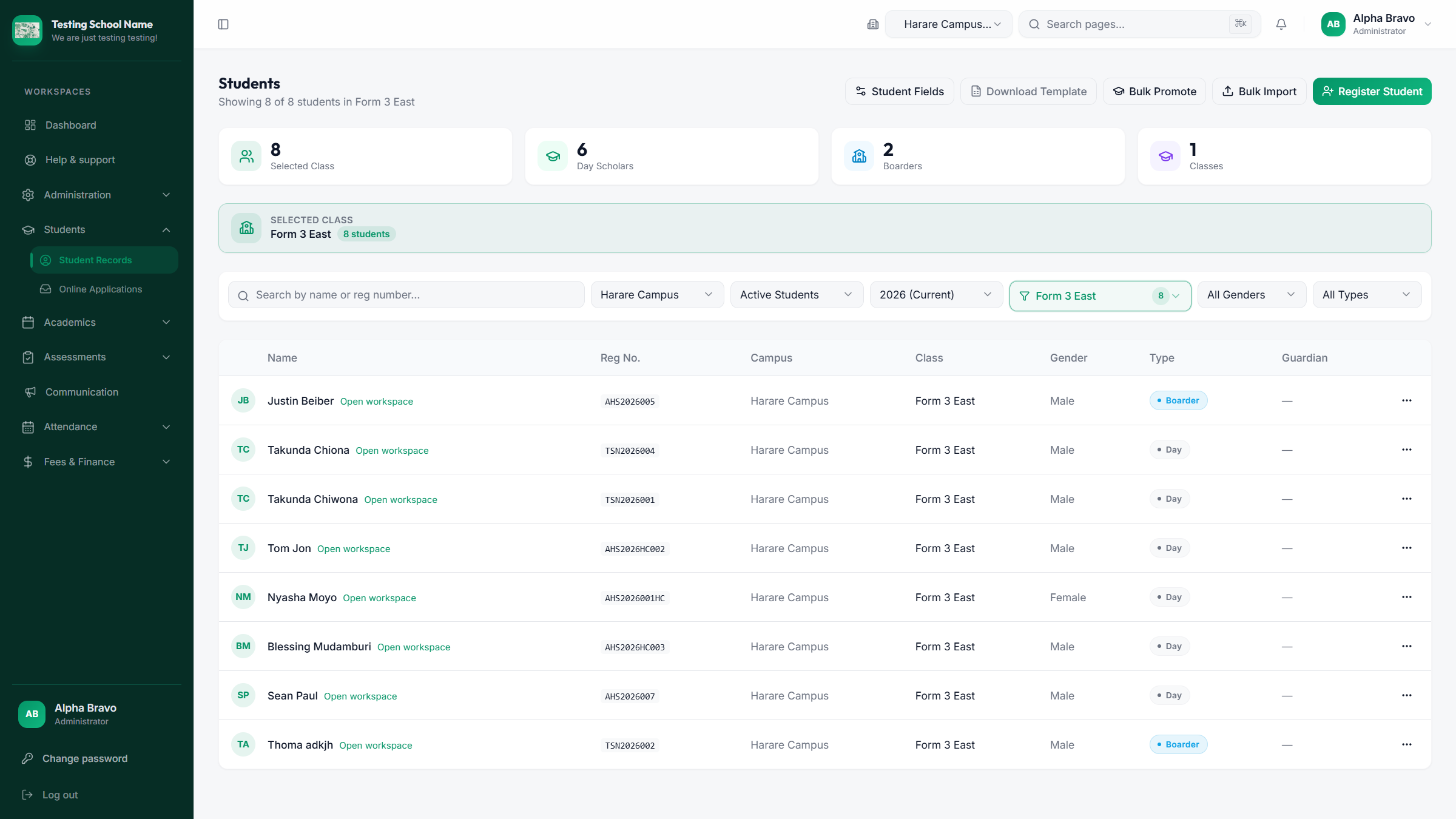
Student records list with filters and register student

Filter by campus, year, class, and day/boarder. Open a learner to see the full workspace.
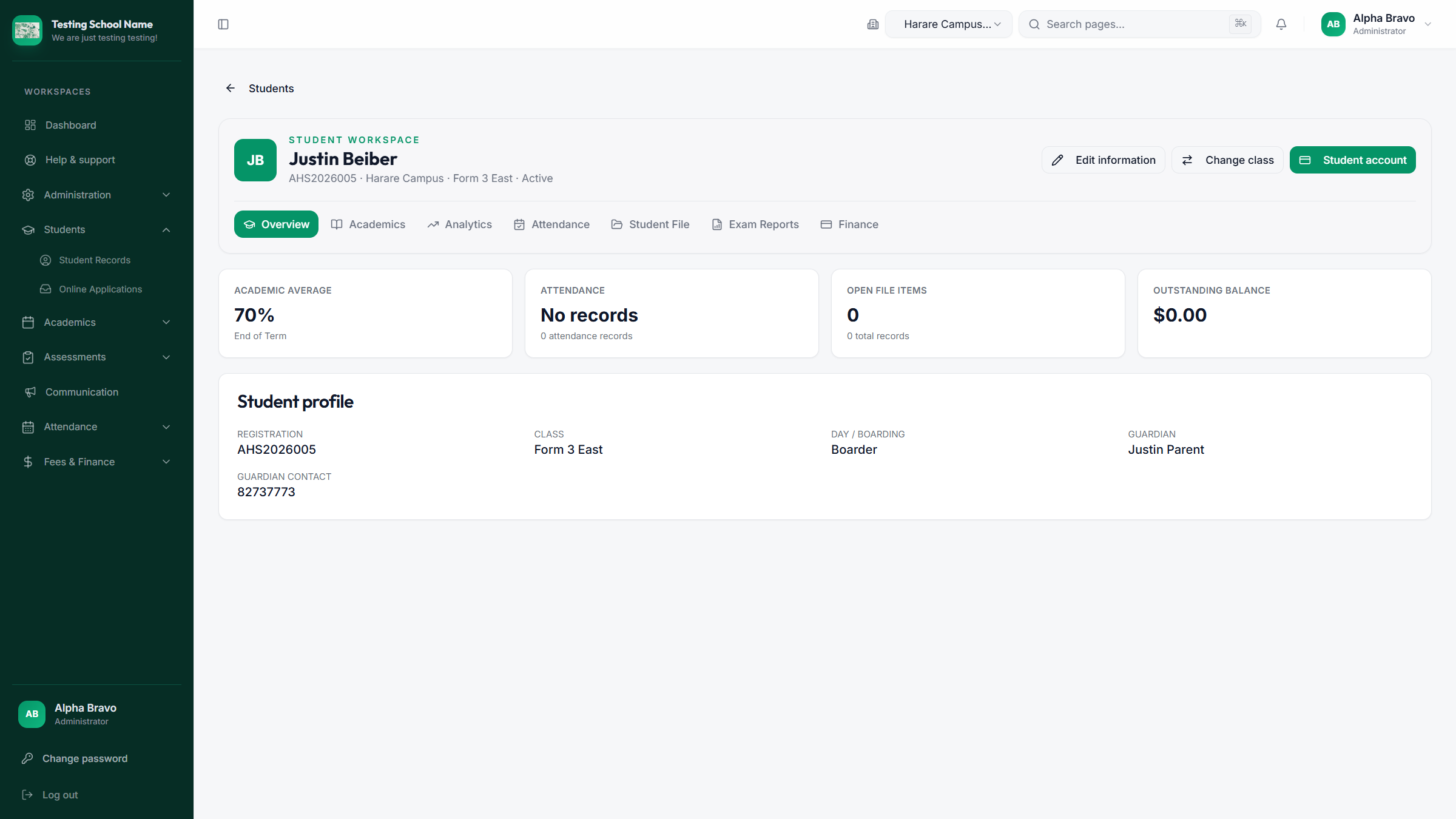
Individual student workspace with profile, reports and finance tabs

Overview, academics, attendance, student file, exam reports, and finance on one learner.

Daily teaching

Attendance is class, date, save
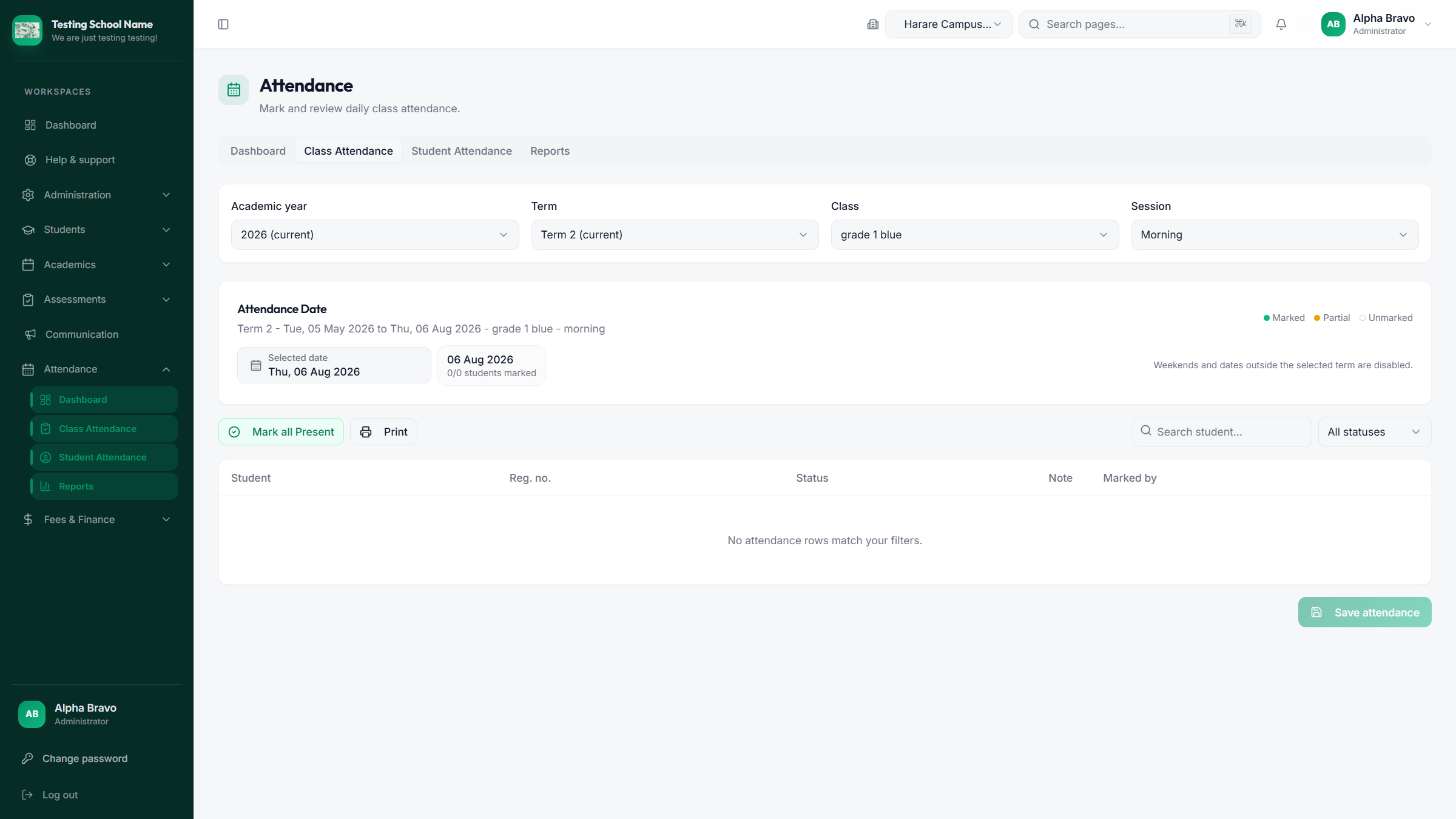
Class attendance marking screen

Teacher routine

  1. Open Attendance → Class Attendance.
  2. Confirm year, term, class, and morning/afternoon session.
  3. Pick the date. Weekends and dates outside the term stay locked.
  4. Mark present, absent, or use Mark all Present, then Save attendance.

On the phone, the same register can be marked offline. It syncs when the network returns. Do not mark twice in two places for the same class and date without checking the register.

Results

Exams move from marking to publish
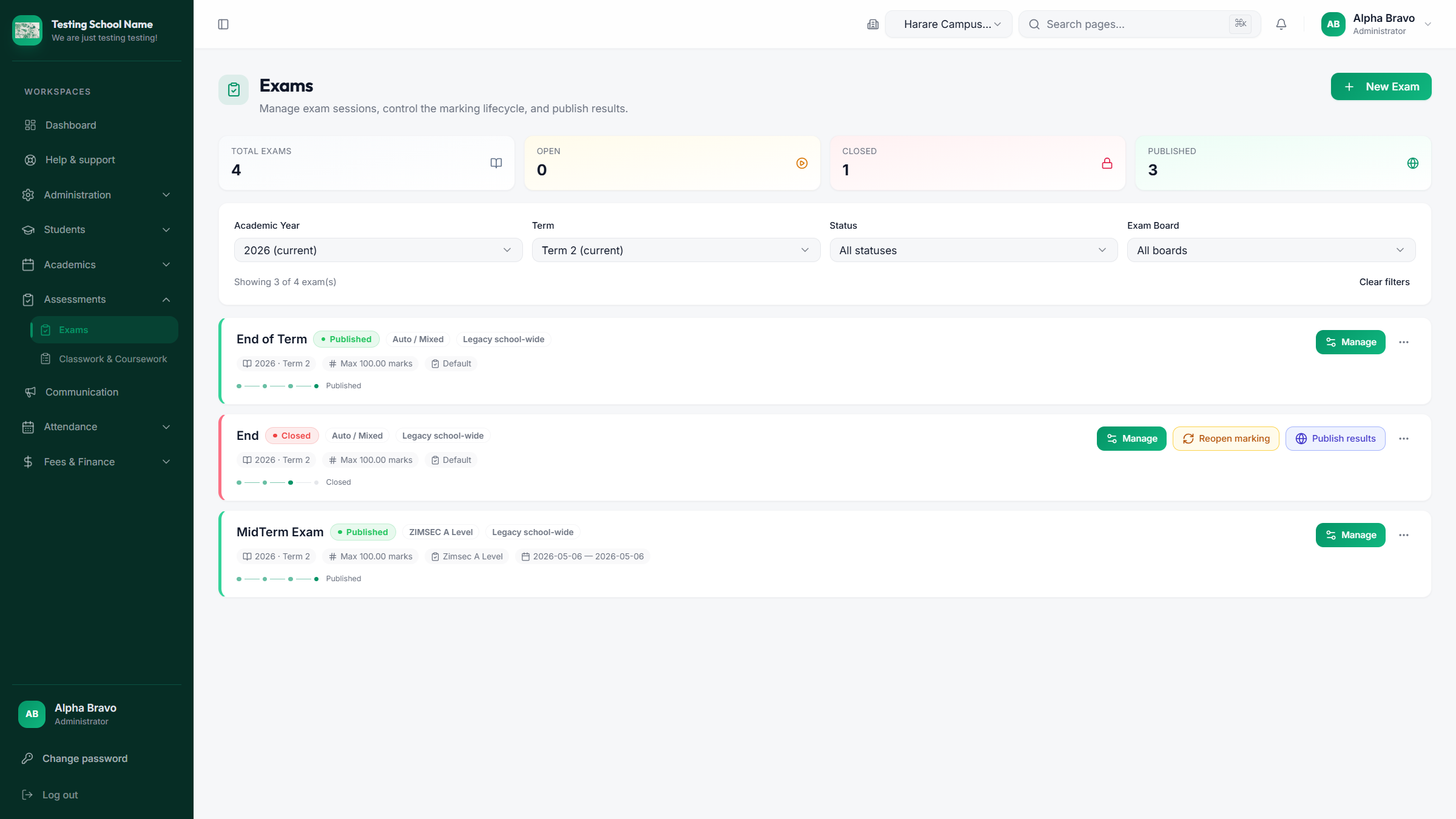
Exams list with published and closed statuses

The lifecycle

  1. Create the exam for the right year, term, and classes.
  2. Teachers enter marks while the exam is open.
  3. Close marking when the set is complete.
  4. Publish results only when the school is ready for families to see them.

Unpublished work stays internal. If the school blocks reports for unpaid fees, the student portal explains that clearly instead of showing a blank page.

Accounts

Fees: collect, receipt, follow up

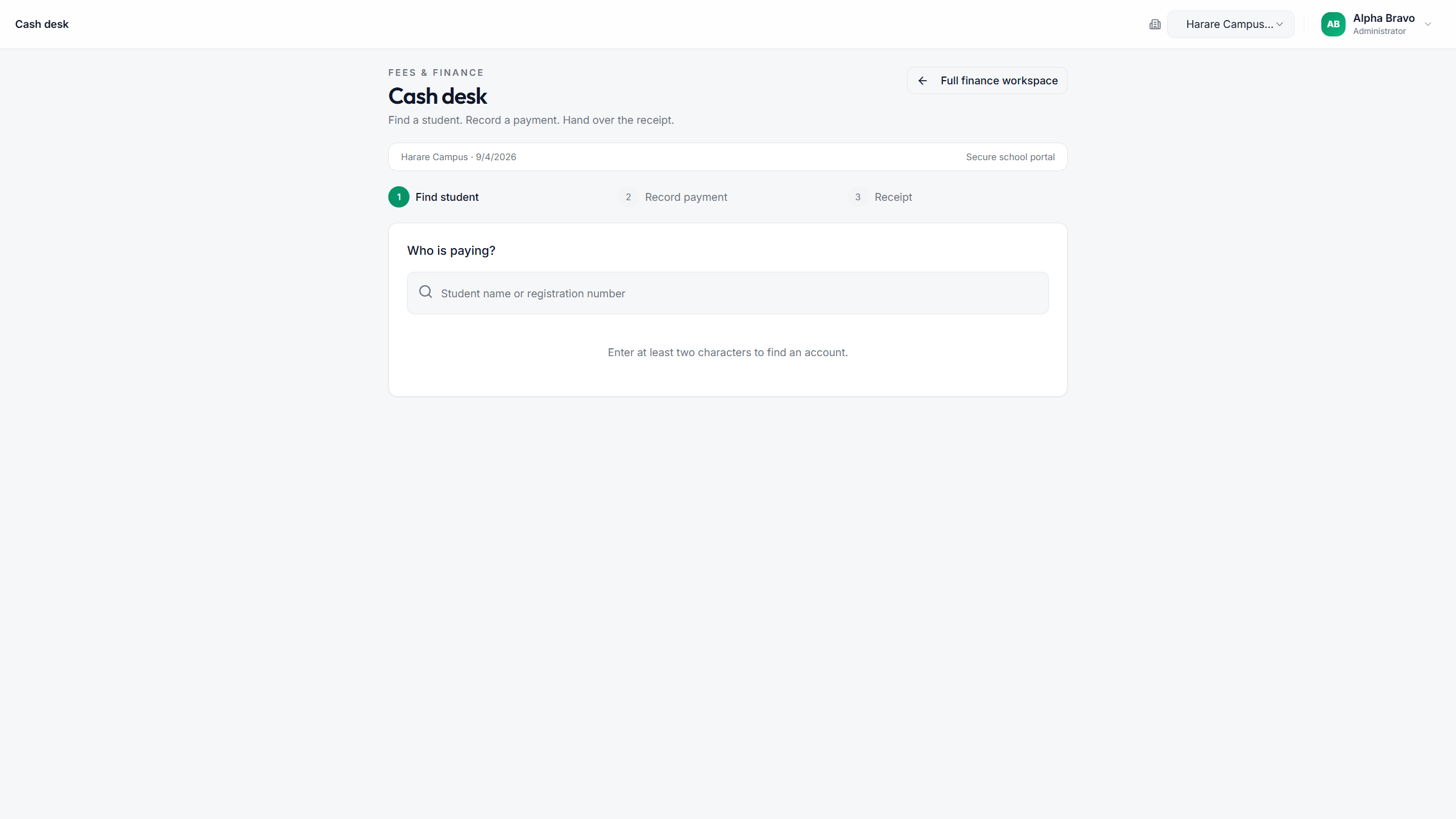
Cash desk find-student step

Cash desk: find the learner, record the amount, hand over the receipt.
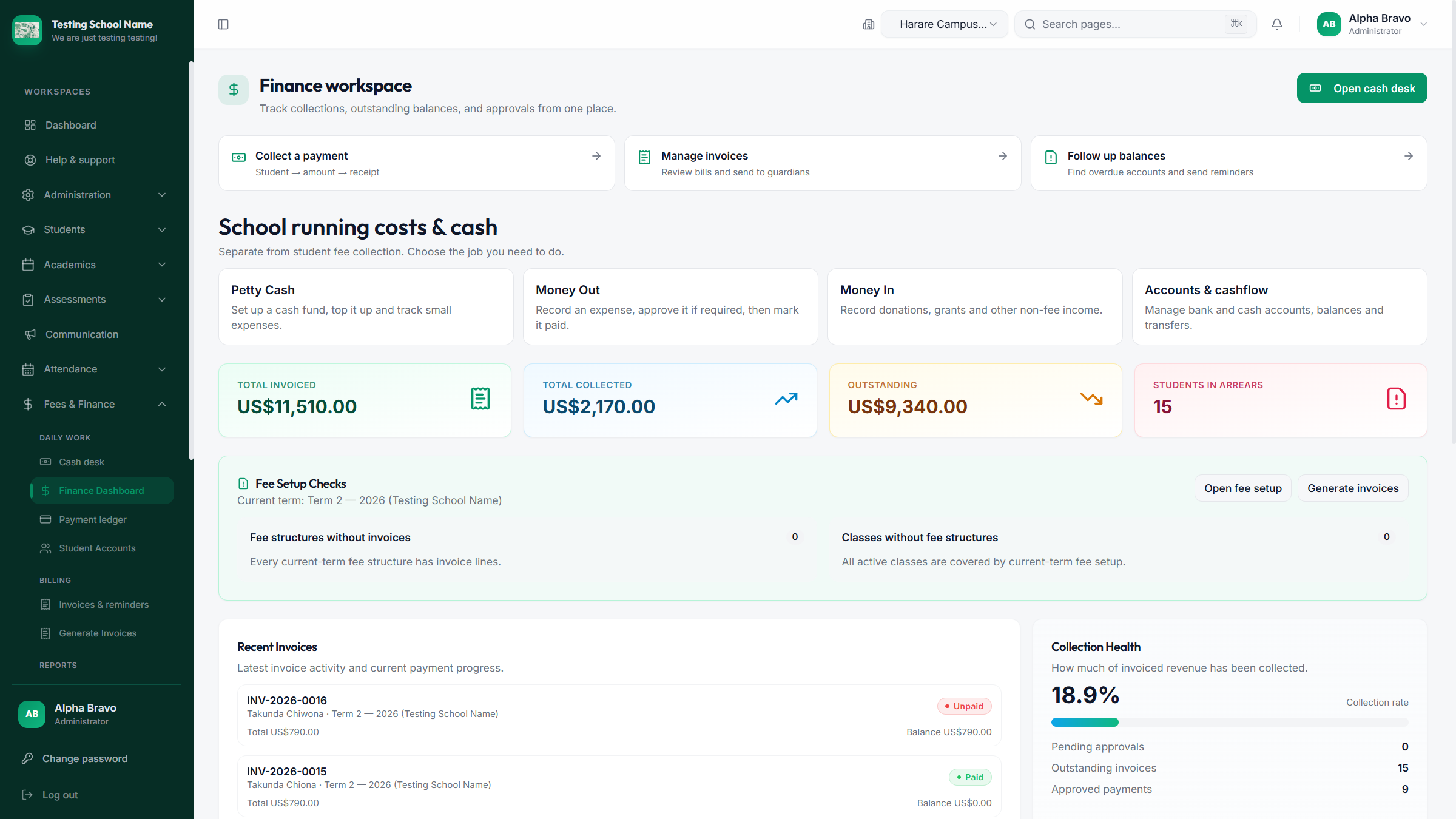
Finance workspace with invoiced, collected and outstanding totals

Finance workspace: invoiced, collected, outstanding, and invoices to guardians.

Families

What students and parents can do
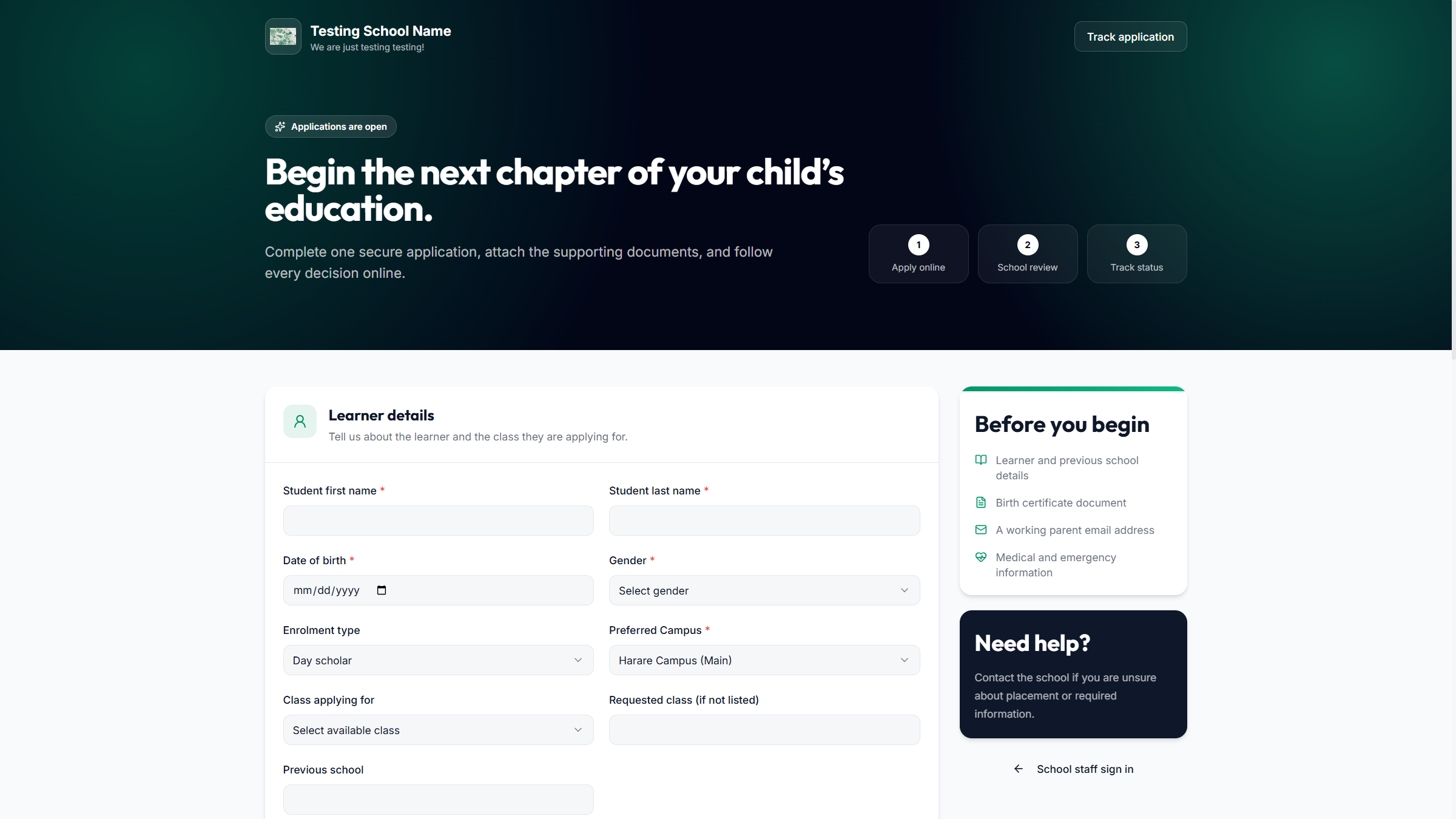
Online admissions application for parents

Family access

  • Apply for a place and track the application with the number and password created at submit.
  • Sign into the Student Portal with the child’s registration number.
  • View subjects, classwork, published reports, attendance, and the fee statement.
  • Upload proof of payment from My Fees when paying outside the office.
  • Read school notices in the portal; parent emails on the learner record also receive invoices and notices.

There is no separate parent password. Treat the student portal as the family login and keep it private.

Notices

Say it once, reach the right people
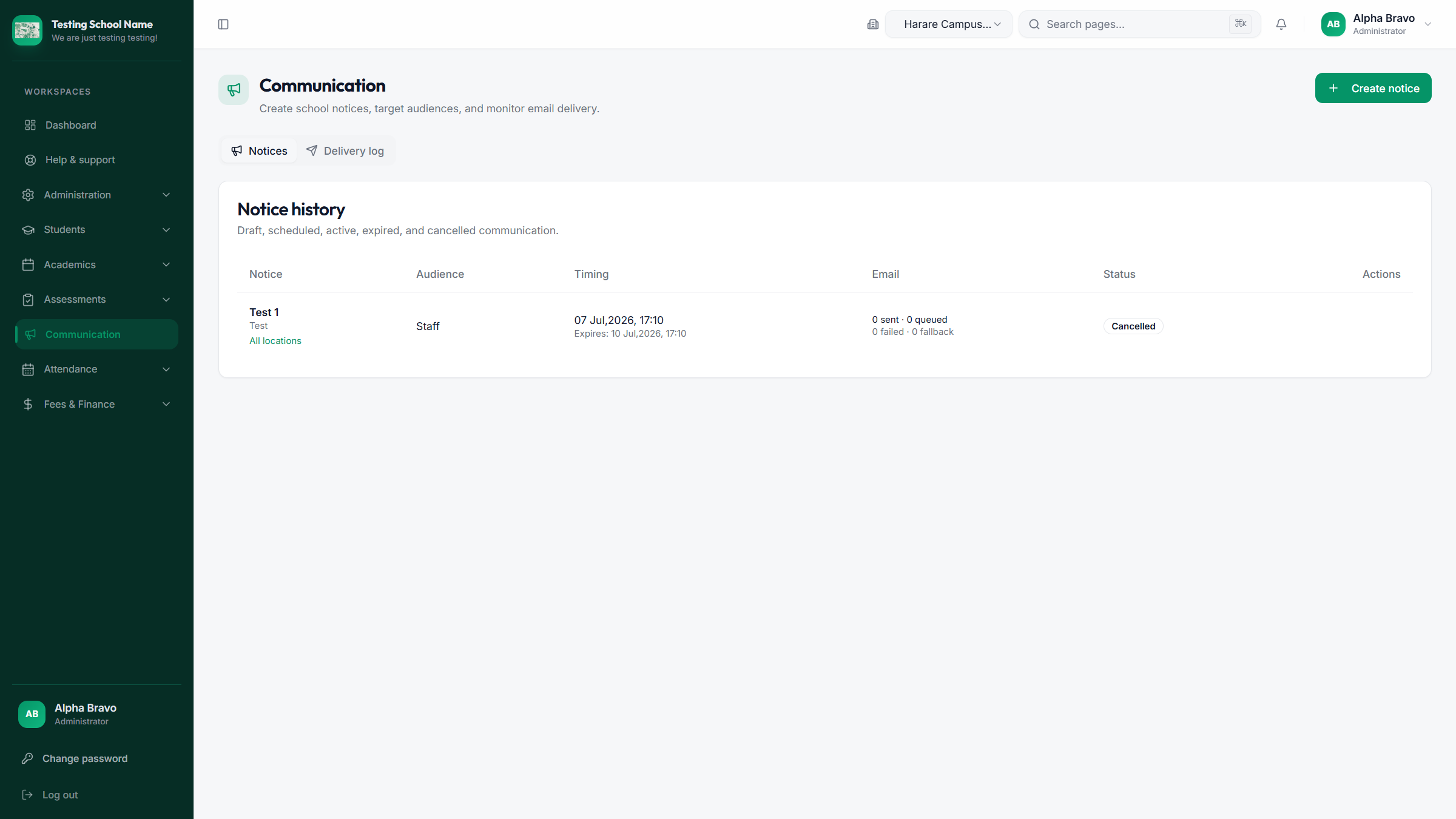
Communication notices list

Administrators and the head

  • Create a notice and choose students, staff, or parents.
  • Limit it to selected classes or staff roles when needed.
  • Dashboard notices still appear even if email is not yet configured.
  • Check Delivery log after sending email.

Keep guardian emails on student records current. That is how invoices and parent notices arrive.

Roles

Who does what

RoleMain workUsually does not
AdministratorStaff accounts, school settings, students, fees, notices, modulesShare one login with the whole office
HeadmasterSchool overview, admissions decisions, notices, academic calendarCash desk data entry unless asked
Teacher / HODClass list, attendance, classwork, exam marksCreate staff users or fee structures
AccountsInvoices, payments, reminders, reportsChange academic calendar
Cash deskFind learner, take payment, print receiptApprove setup or edit fee structures
Student / familyReports, homework, fees, noticesSee other learners’ records

Go-live

This week’s checklist

Office and leadership

  1. Confirm the school portal URL and branding.
  2. Create staff users with the right role. Each person uses their own email.
  3. Set the current academic year and term.
  4. Finish classes, class teachers, and student subject registration.
  5. Issue student portal slips and tell families to change the temporary password.

Teaching and accounts

  1. Teachers mark one live attendance register and save it.
  2. Accounts confirm fee groups and generate the current-term invoices.
  3. Practice one cash-desk receipt and one proof-of-payment approval.
  4. Publish only when results are checked.
  5. Send one test notice to staff, then one to a small parent group.

Support

Help is in the portal, then Tailored Bytes

In school

Use Help & support in the staff or student portal. Keep screenshots of error messages.

Passwords

Staff: Forgot password on the login page. Students: ask the office to reset the student account and reprint a slip.

Vendor

[email protected] · tailoredschool.com/contact · Do not share passwords in email.

Take-away: staff email in, students registration number in, save attendance before you leave the class, publish results only when ready, and receipt every payment.