 Tailored School
1. Who this is for
The school uses one secure portal for academics, attendance, reports, and fees.
- Students sign in with a registration number and password.
- Parents and guardians do not get a separate parent password. You use the child’s student portal login, and you receive emails if the school has your address on the learner’s file.
- New applicants use Apply for admission and Track an application — that is a different login from the student portal.
2. Apply for a place
On the school portal login page, choose Apply for admission. You do not need a staff or student account.
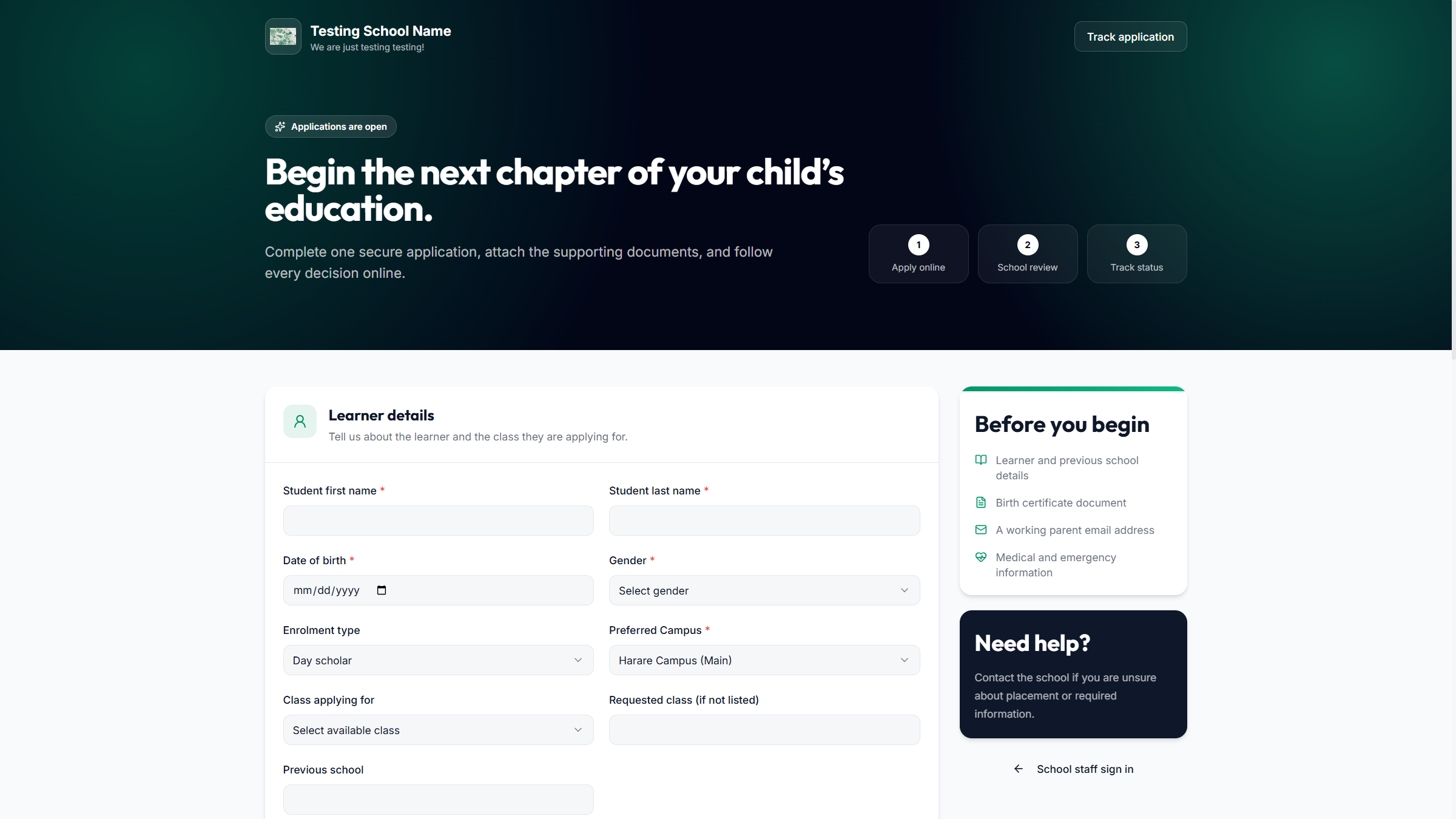
- Have ready: learner names, date of birth, your email and phone, and a scan or photo of the birth certificate (PDF, JPG or PNG, up to 4 MB).
- Choose campus and the class you are applying for, if the list is shown.
- Create an application password (at least 8 characters). This is only for tracking this application, not the later student portal.
- Submit. Keep the application number the school shows or emails you.
- Use Track an application on the login page with that number and password to see the status.
When the school accepts the application, they can create the learner account. You should then receive the registration number and a temporary student-portal password — usually by email if your address is on the form.
3. Sign in to the student portal
Open the school portal address. Choose the Student Portal tab — not Staff Portal.
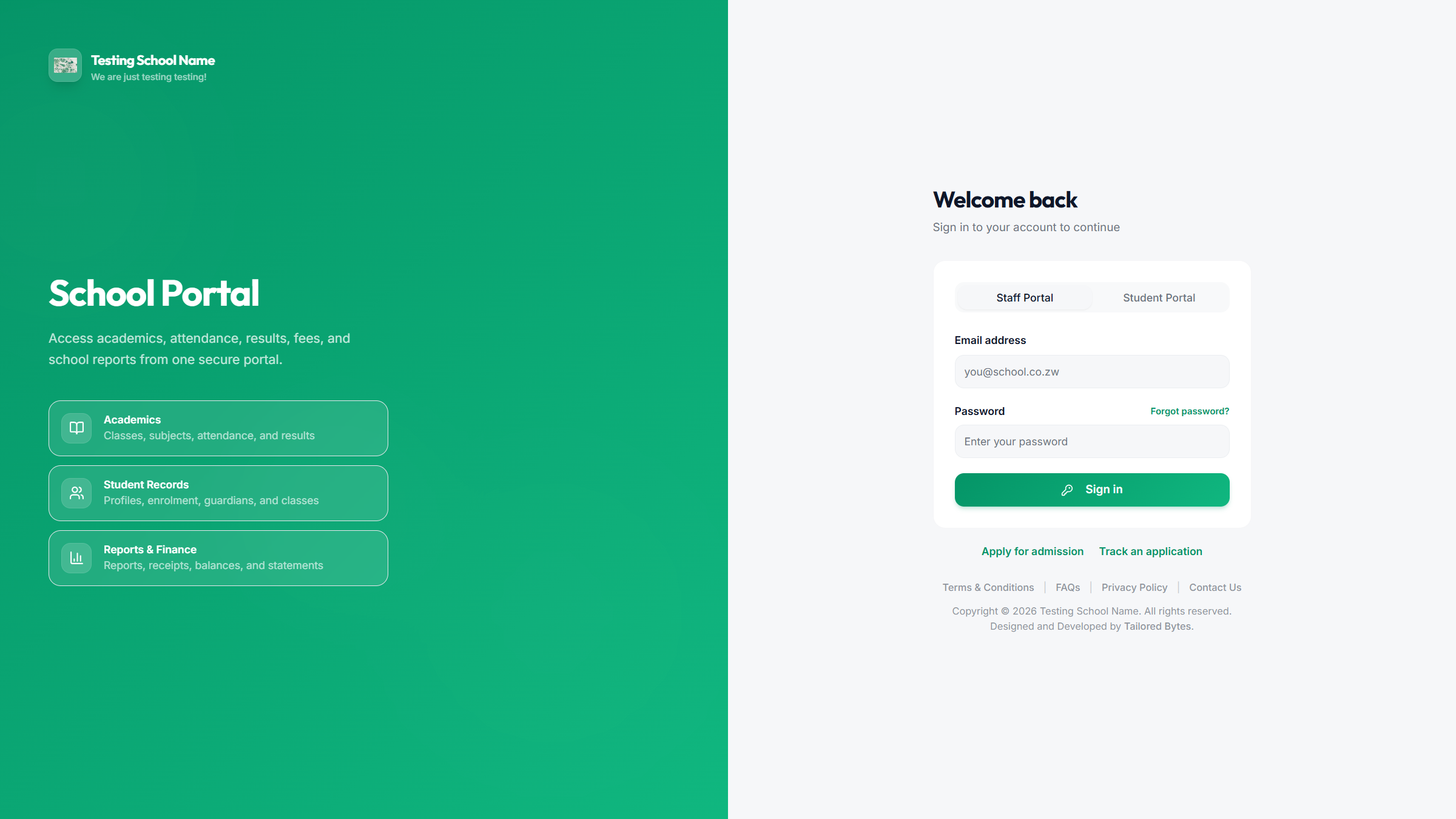
- Click Student Portal.
- Enter the registration number from the credential slip, report, or office (for example a code like AHS2026005).
- Enter the password. The first one is temporary.
- Choose Enter Student Portal.
- Change the password when asked. Parents should know the new password if they will check fees and reports.
4. What you will see
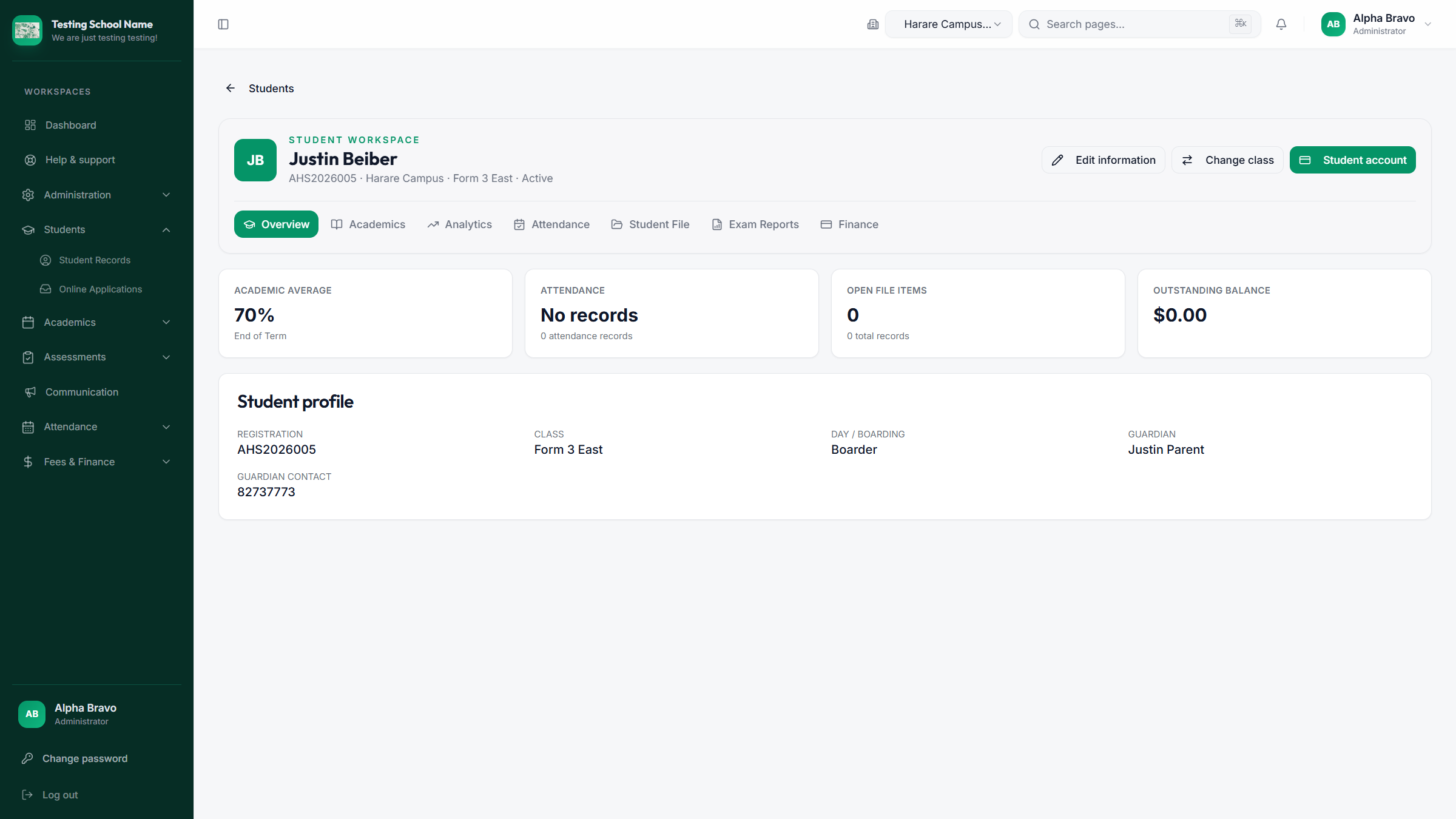
After sign-in, use My Portal in the menu. You only see this learner — never other children’s marks or balances.
| Menu | What it shows |
|---|---|
| Dashboard | A short welcome, notices, and a snapshot of class and term. |
| My Subjects | Subjects registered for the current term and, where recorded, the teacher. |
| My Class | Class name and class teacher. |
| Classwork & Coursework | Homework and other tasks, due dates, files from the teacher, and your submission. |
| Reports | Published report cards and transcripts. |
| Analytics | A simple view of performance once reports exist. |
| My Fees | Invoices, payments, balance, download/print, and proof of payment upload. |
| Attendance | This learner’s attendance history. |
The school office sees a fuller student file (contact details, internal notes, finance). Families see the learner’s own academics, attendance, published reports, and fees.
5. Reports and results
- Open Reports.
- Choose the exam or term that is listed. Only published reports appear.
- Open the report to view or print. Some reports can be verified with a link or QR if the school prints one.
6. Fees, invoices and proof of payment
- Open My Fees.
- Check the balance, invoice list, and payment history.
- Download or print an invoice or statement if you need it for a sponsor or employer.
- If you paid by bank or mobile money, upload the proof of payment on that invoice and wait for Pending to become Approved.
Paying cash at the school office is recorded at the cash desk. Ask for a printed receipt and keep it. The receipt number is the proof the office will look up later. Schools often print receipts on a thermal POS printer—see the hardware store if you are setting up the office.
Invoice emails go to the parent email on the learner record first. Update the office if you change phone or email.
7. Homework and classwork
- Open Classwork & Coursework.
- Open the task. Download any resource the teacher attached.
- Submit your work before the deadline. You can usually replace the file once if the teacher has not finished marking.
- After marking, read the comment and any returned file.
Allowed files are typically PDF, Word, Excel, PowerPoint, pictures, and text. Submitting needs internet. If the page fails, try again from a browser or the Tailored School app — do not assume the teacher received a failed upload.
8. Notices and email
School notices appear on the student dashboard. Parent-targeted notices and fee emails use the guardian email stored by the school.
- Read notices in the portal even if email is quiet — the notice board is the official copy.
- Tell the office immediately if the parent email or phone on the file is wrong.
- Public notice links in an SMS or email open without full portal login when the school sends that kind of message.
9. On a phone
If the school has given you the Tailored School app:
- Search and select your school.
- Sign in with the same registration number and password.
- Open homework, reports, attendance, and fees. Some screens still work from a recent download if the signal is weak; sending homework needs a connection.
You can also use a phone browser with the same Student Portal tab as on a computer.
10. Common problems
| What you see | What to do |
|---|---|
| Staff Portal asks for email | Click Student Portal and use the registration number. |
| Invalid credentials | Check the registration number (no extra spaces). Ask the office to reset the student account if the temporary password was lost. |
| Must change password | That is normal on first login. Choose a password the family can keep private. |
| No reports | Wait for the school to publish, or settle fees if the portal says results are blocked. |
| Payment still pending | Wait for accounts approval, or take the bank proof to the office. |
| Cannot apply | Applications may be closed. Use Track an application if you already applied, or contact the school. |
| Portal expired / suspended | The school’s subscription needs attention. Contact the school office, not a teacher’s personal phone only. |
Start with the school office. If they ask you to write to the software provider: [email protected] · tailoredschool.com/contact.
Privacy policy: tailoredschool.com/privacy.